 RU
RU ZH
ZH IT
IT ES
ES TR
TR JA
JA PT
PT KO
KO FR
FR DE
DE AR
AR ID
ID
Summary of the application field of touch screen all-in-one machine
Learn More



When integrating a large touchscreen into an industrial workstation, interactive information system, or commercial control device, choosing the right display is only part of the job. Engineers also need to confirm how video signals are transmitted, how touch input reaches the host computer, and how cables fit into the enclosure. If these details are overlooked, even a high-resolution display can require additional engineering work before it is ready for production.
The 32 Inch 4K UHD Touch Screen Monitor from GreenTouch combines a 3840 × 2160 display with 10-point projected capacitive touch and multiple connection options. Its two HDMI ports, DisplayPort (DP), USB connections, and Type-B USB interface provide several options for connecting the monitor to a host system. Understanding the role of each interface helps equipment developers plan a practical installation and avoid common integration problems.
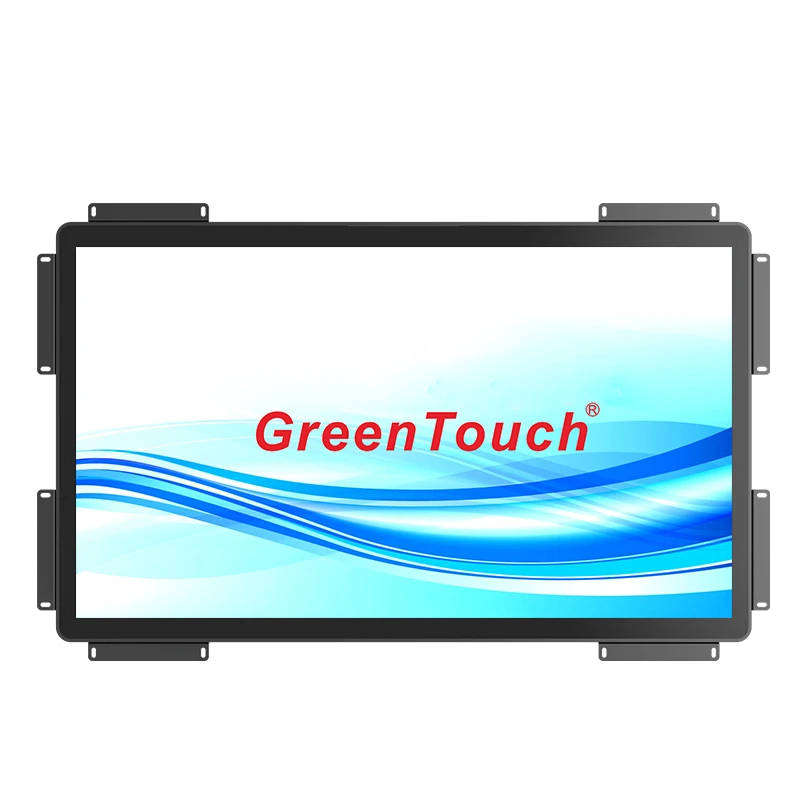
Before connecting a touchscreen monitor, it is important to distinguish between video transmission and touch communication. These functions work together, but they do not necessarily use the same cable.
HDMI and DisplayPort transmit video signals from a computer or other compatible source to the monitor. They allow the host device to output the desktop, application interface, images, and other visual content at a supported resolution and refresh rate.
USB serves a different purpose in a typical touch monitor installation. The USB connection carries touch input from the monitor's touch controller to the host computer. When a user touches a button or moves a finger across the screen, the touch controller processes the input and communicates the corresponding coordinates to the connected system.
For the 32-inch 4K touch monitor, the listed interfaces include two HDMI ports, one DisplayPort connection, USB, Type-B USB, and an earphone output. The exact function of each USB connector should be confirmed against the product's connection diagram and user manual before wiring the system.
A useful starting point is to identify three things: the host computer's available video outputs, the monitor's supported input connections, and the USB connection required for touch functionality. Checking these details before purchasing cables can reduce unnecessary adapters and simplify installation.
HDMI and DisplayPort are both widely used for connecting high-resolution displays to computers and embedded systems. Neither interface should be selected solely because it appears more advanced. The appropriate choice depends on the capabilities of the host device, the monitor input, the required resolution, and the cable installation.
HDMI is commonly found on desktop computers, laptops, media players, and many commercial computing devices. It can be convenient when the host system already provides a compatible HDMI output and the installation does not require a conversion adapter.
DisplayPort is also common on professional workstations, graphics-equipped computers, and some industrial computing platforms. It may be the preferred option when the host provides a suitable DisplayPort output and the system design is already based on that interface.
The GreenTouch monitor supports HDMI and DP connections, giving integrators flexibility when working with different host configurations. However, the presence of these connectors does not mean every connected computer will automatically output 3840 × 2160 at the desired refresh rate. The graphics hardware, output version, cable specification, monitor input capabilities, and operating system settings all need to be considered.
For example, a workstation used to display engineering drawings may need the full 4K desktop resolution to show detailed interface elements. Before finalizing the connection, the engineer should confirm that the computer supports the required output mode and that the selected cable can carry it reliably.
For a production installation, it is also worth testing the actual cable length and routing arrangement. A connection that works with a short cable on a laboratory desk may behave differently when routed through a machine enclosure or a cable channel alongside other equipment.
A straightforward integration process starts with the video connection, followed by the touch connection and a complete functional test.
First, check the host computer and select a compatible video output. Connect the HDMI or DisplayPort cable between the host and the corresponding monitor input. If the system uses two HDMI ports, confirm which input is connected rather than assuming the monitor automatically selects the intended source.
Second, connect the monitor's touch interface to the host using the USB connection specified for touch communication. The video cable alone should not be assumed to provide touch functionality. In a typical setup, the video connection displays the computer's interface while the USB connection allows the computer to receive touch events.
Third, power on the host and monitor according to the manufacturer's instructions. Open the operating system's display settings and verify that the monitor is detected at the intended resolution. If the image appears stretched, cropped, or unclear, check the output resolution, scaling configuration, and selected input source.
Fourth, test touch operation. Select several controls near the center, edges, and corners of the active display area. Confirm that the cursor or application response corresponds to the actual touch location. If touch input is unavailable, check the USB connection, host device detection, controller requirements, and relevant system settings.
Finally, restart the system and repeat the test. This helps identify connection or startup issues that may not appear during the first installation.
Following this sequence makes it easier to determine whether a problem originates from the video path, touch communication, system configuration, or physical installation.
A 32-inch UHD monitor provides a resolution of 3840 × 2160 pixels, giving the host system a large workspace for detailed content. Compared with Full HD at 1920 × 1080, 4K UHD provides four times as many pixels.
This additional pixel count can be useful in applications that display multiple information panels, detailed diagrams, technical drawings, monitoring dashboards, or high-resolution images. Operators can work with more visual information on one screen, depending on application design and operating system scaling.
However, a higher resolution also creates integration considerations. Some legacy applications are designed for lower-resolution displays and may use small text or controls when displayed at 4K. Engineers should check interface scaling, font sizes, and the application's behavior at the target resolution.
The monitor's specified color capabilities include 99% sRGB, 95% DCI-P3, and support for 1.07 billion display colors. HDR is also listed as a feature. These specifications may be relevant when the installation involves detailed visual inspection, rich graphical content, or color-sensitive workflows. Actual results depend on the source content, software configuration, and the monitor's measured performance.
For touch-operated applications, resolution and usability need to be evaluated together. A detailed interface is useful only if operators can read its content and select controls comfortably. Testing the actual application on the 32 Inch 4K UHD Touch Screen Monitor before deployment can reveal scaling and interaction problems early in the development cycle.
The monitor supports projected capacitive touch with up to 10 touch points. This enables applications to recognize multiple simultaneous contacts, provided the host operating system and software support the required multitouch behavior.
For a control interface, multitouch can support gestures such as zooming, rotating compatible content, or interacting with several points simultaneously. In collaborative or interactive applications, multiple touch points may also be useful for drawing, annotation, and manipulating visual objects.
Nevertheless, 10-point hardware support does not automatically guarantee that every application will use all ten points. The host controller, operating system, drivers, and application software must work together to deliver the intended behavior.
During integration, test the touch functions that the finished product will actually use. If the application only requires single-point selection, confirm reliable response across the active area. If it depends on multitouch gestures, verify simultaneous contacts, gesture recognition, and interaction behavior within the target software.
It is also important to test the monitor in its final mounting position. The way an operator approaches the screen, the angle of the display, and the placement of surrounding controls can affect practical usability.
Interface compatibility is only one part of a successful installation. Cable routing, connector clearance, and mounting access should be included in the mechanical design.
GreenTouch specifies that the monitor's connections are positioned on the back and face downward. This arrangement can be useful when planning installations where cables need to follow the rear of the display rather than extend directly outward. Even so, the finished enclosure must provide enough clearance for the connectors, cable bends, and maintenance access.
Before creating the mounting structure, review the monitor's mechanical drawings and confirm the location of all ports. Leave sufficient room to connect and disconnect HDMI, DisplayPort, and USB cables without placing excessive stress on the connectors.
Where several cables run together, secure them appropriately and avoid sharp bends or unnecessary tension. In industrial equipment, consider whether vibration, repeated servicing, or movement of nearby components could affect cable connections over time.
The monitor also supports configurable automatic power-on or power-off behavior based on the presence of current or a video signal, according to the product information. Integrators should confirm the exact triggering conditions and available settings with the manufacturer before incorporating this function into a power-management sequence.
A touchscreen installed in a workshop, production area, or equipment enclosure may encounter dust, water splashes, and accidental impacts. The required protection level should therefore be considered alongside connectivity and display performance.
The GreenTouch 32-inch monitor specifies IP65 front-panel protection and an IK08 rating for the front panel. These ratings address different aspects of protection: IP65 relates to dust ingress and water jets under defined test conditions, while IK08 relates to resistance to mechanical impact under a standardized test.
These specifications should not be interpreted as proof that every part of the assembled system has the same protection. The rear connectors, cable entry points, mounting joints, and enclosure design may affect the protection of the complete installation.
If the monitor will be installed in a dusty production area or near equipment cleaning operations, confirm the environmental requirements with the supplier. The mounting method and surrounding enclosure should be designed to preserve the intended front-panel protection.
Optional surface treatments include anti-glare (AG), anti-reflection (AR), anti-fingerprint (AF), and antibacterial treatments. The appropriate finish depends on lighting, cleaning procedures, user interaction, and the specific requirements of the application. Buyers should confirm which treatments are available for their selected configuration.
ShenZhen GreenTouch Technology Co., Ltd. is a touch-product manufacturer offering capacitive and resistive touchscreens, infrared touch frames, touch monitors, and integrated touch computers. Its stated manufacturing capabilities include a Class 1,000 dust-free lamination workshop, multiple bonding processes, and a 5,000-square-meter standard production workshop.
For OEM equipment developers, discussing integration requirements with the manufacturer before production can help clarify interface functions, mechanical dimensions, cable arrangements, and supported operating conditions. GreenTouch lists CE, FCC, RoHS, CB, EMC, HDMI, CCC, IP65, and IK08 among the certifications or compliance-related specifications associated with this monitor. Buyers should verify the applicable documentation and its scope for the exact model and configuration.
Before approving the monitor for a project, prepare a checklist covering the host computer, selected video input, USB touch connection, target resolution, software compatibility, mounting clearance, and environmental conditions. Testing the complete system is more useful than validating the display separately because the finished product depends on all these components working together.
The 32 Inch 4K UHD Touch Screen Monitor combines UHD visuals, 10-point capacitive touch, HDMI and DisplayPort connectivity, and specified front-panel protection in a single display solution. By checking the video path, touch communication, cable layout, and system requirements early, equipment manufacturers can simplify integration and identify potential compatibility issues before the design reaches production.